Track Invoices in Seller Ledger

As we continue to improve the product based on customer feedback, today we’re announcing the release of improvements to tracking invoices. In accounting parlance, this involves accounts receivable (money owed to you) accounts.
Why would I need to track invoices?
For many small sellers, cash-based accounting works quite well. You simply recognize income and expenses when you receive or spend the money. But as your business grows, you may choose to use more of an accrual model, where you recognize income when you make the sale, since payment can come a bit later. For that, you’ll need some new accounts.
Tracking invoices
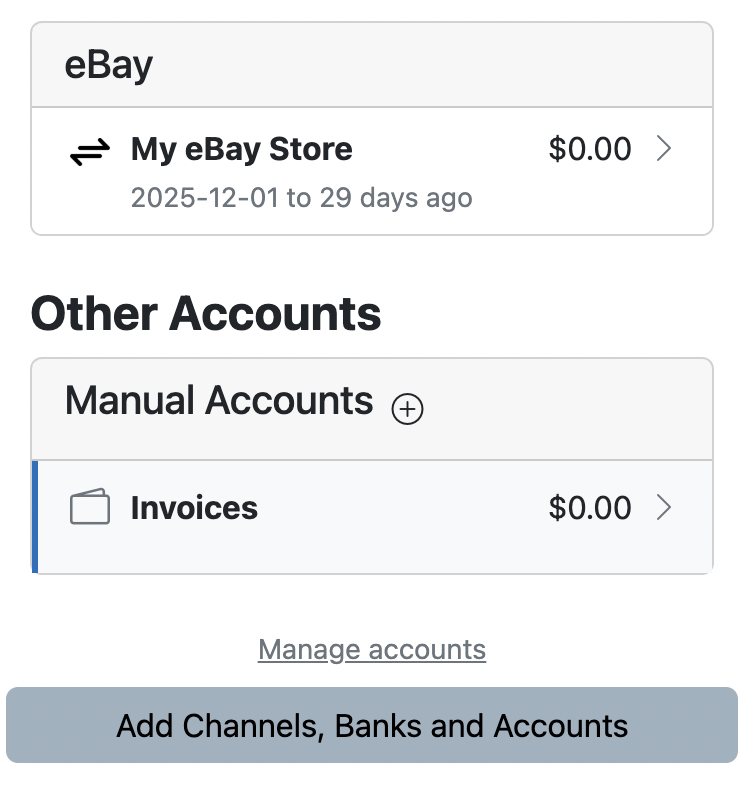
To track invoices in Seller Ledger, you’ll want to create a new account. Go to Settings -> Accounts, or just click “Manage accounts” at the bottom of the account list on your dashboard.

Click the “Add Asset Account” button to see the following:

Choose “Accounts Receivable” as the type, give the account a name and, optionally, a start date, and you’ve created an account that will let you keep track of the money people owe you.
Now, once you’ve created your invoice account just click into it to start recording invoice transactions.
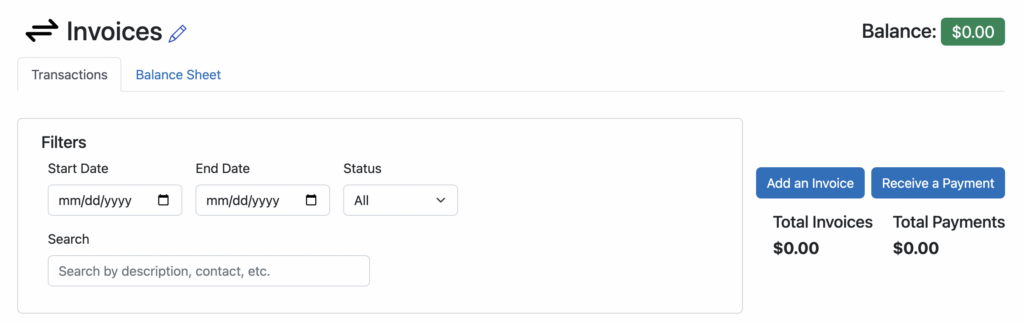
At the top of the screen, you’ll see buttons to “Add an Invoice” or “Receive a Payment”
Click “Add an Invoice” and you’ll see a screen like the following:
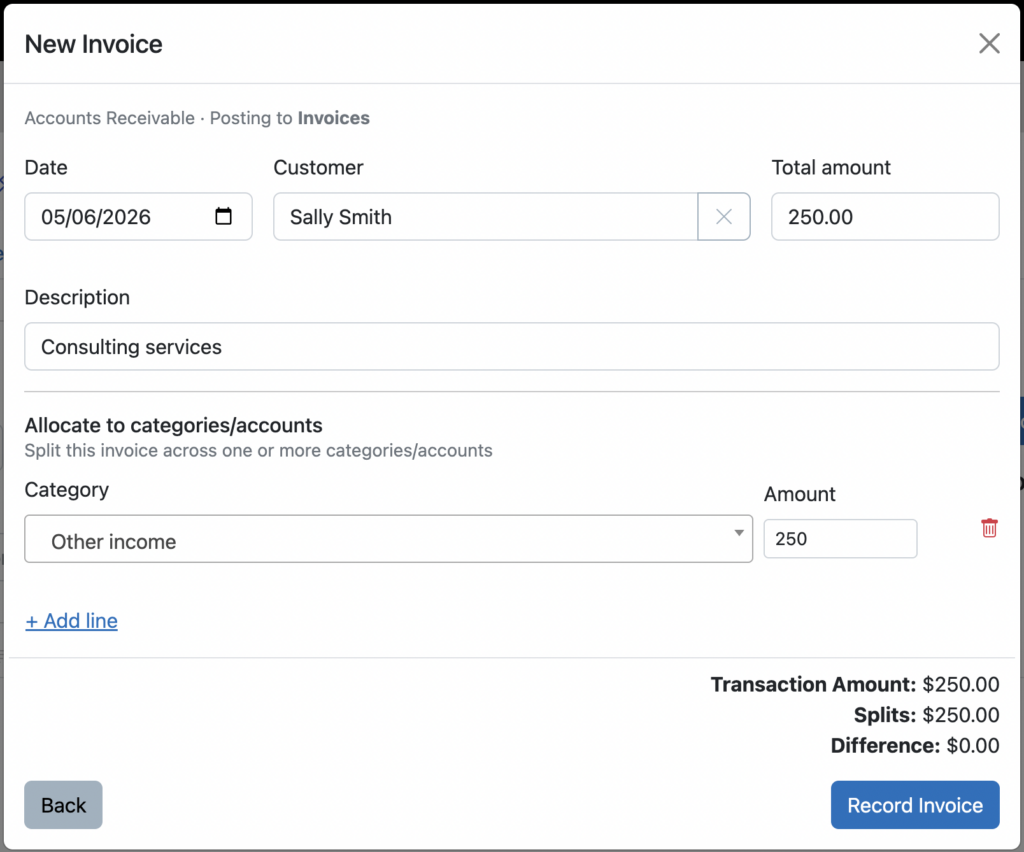
You can even split the invoice amount into multiple categories if you would like.
Tracking invoice payments
When a customer pays an invoice, you can record that payment in a few different ways.
If you have connected the bank account where checks and payments get deposited, you should see the payment for an invoice show up there. Simply click to categorize that payment as a transfer to the new Invoices account.
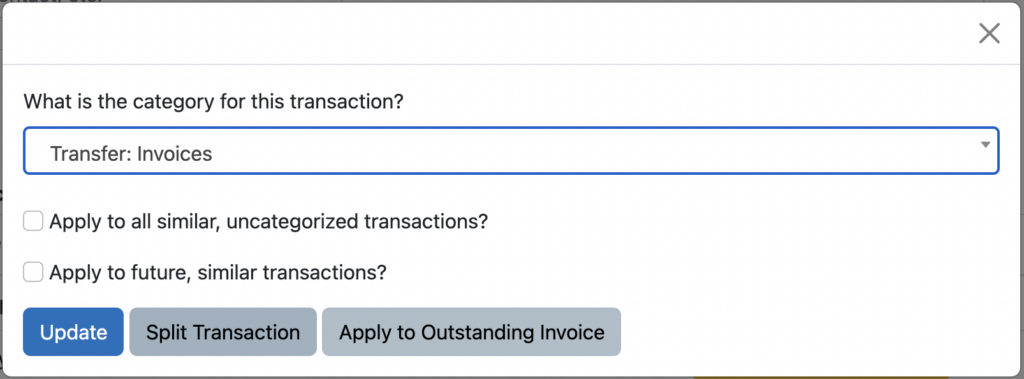
Notice that, as soon as you choose the Transfer: Invoices option, a button appears to allow you to “Apply to Outstanding Invoice.” Click that and you can mark the specific invoice as having been paid.

And if you don’t have a connected bank account, just click into the Invoice account and choose the “Receive a payment” button.
Invoice amount tracking only
At the present time, Seller Ledger only allows you to track the amounts of your invoices. We do not provide electronic sending of invoices. Not do we yet support the ability for customers to pay your invoices electronically.
Ready to automate your eCommerce bookkeeping?
Join thousands of sellers who save hours every month with Seller Ledger.
No credit card required