How to Handle Sub-Accounts from Shopify and Found

As more financial institutions look for creative ways to help customers manage their money, it can introduce some interesting questions. Shopify has partnered with Fifth Third Bank and others to offer Shopify Balance accounts, with the ability to add extra sub-accounts to track things like sales tax collected and more. And, we recently had a customer write in about reconciling her marketplace payouts to the various sub-accounts (called “pockets”) at Found.com.
So we thought we’d take a moment to help you understand how to handle sub-accounts from platforms like Shopify and Found.
How money moves around
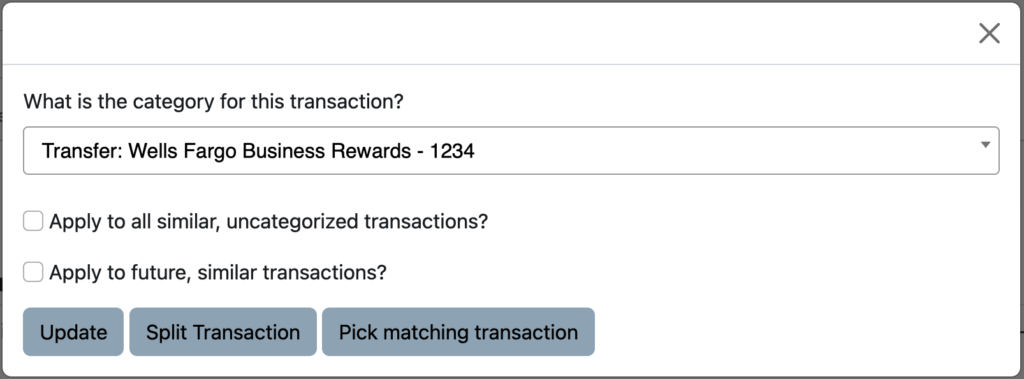
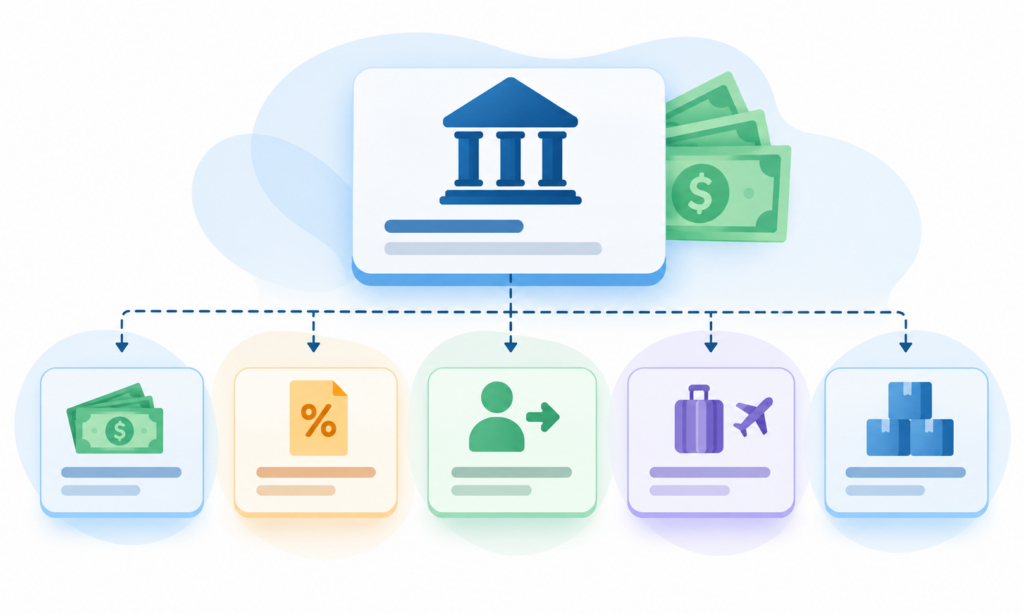
There are two primary things that happen when money flows from your online marketplace/sales platform to your bank and into the individual sub-accounts.
- The marketplace issues a payout to your bank. This payout is shown as a withdrawal from your marketplace account (e.g. Shopify, eBay, Amazon, etc) and a deposit to your primary/main bank account.
- The bank may split that deposit into multiple transfers to the individual sub-accounts. You will see these as withdrawals from your main account and deposits into the sub-accounts.
In both cases, money is simply moving between accounts and does not affect your profit and loss.
Payouts
So long as you have linked both your marketplace/sale channel and the corresponding Shopify Balance or Found.com account where your payouts are sent, Seller Ledger can automatically match them and treat them as transfers:
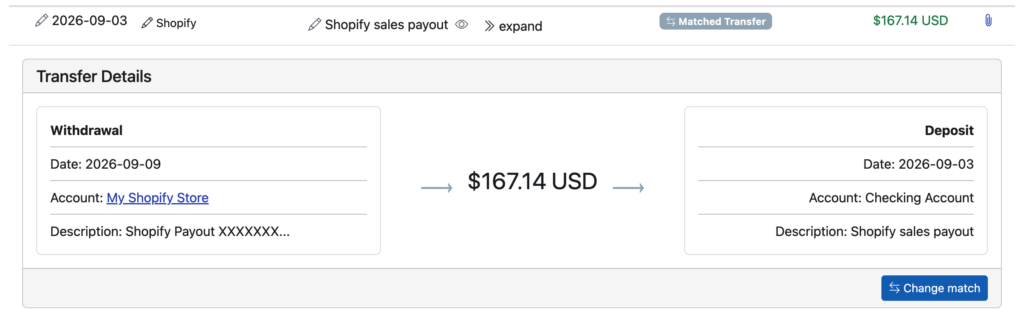
And as you can see, if you click to “expand” the deposit in your Shopify Balance account, we’ll show you how the money flows – from your Shopify account to your Shopify Balance Checking Account. You’ll see the same behavior if you click on your eBay payout deposits in your Found account.
Transfers to sub-accounts
Then, if you want to see the money that moves to the sub-accounts, you’ll see the exact same behavior. Because sub-accounts are all provided by the same bank, it’s even easier for Seller Ledger to match the transfers.
Where do my Shopify income and expenses show up?
Seller Ledger connects directly to Shopify and most leading eCommerce platforms to import your income and expenses from there. You can click into any of them right from your dashboard. Sales show as deposits within those accounts, and expenses show up as withdrawals – as do your payouts. The difference between your income and expenses is what determines your profit. Your payouts simply move money from one account to another.
This is the #1 thing that Seller Ledger provides – all of the details behind your payout deposits. You have the information necessary to match gross sales to 1099-Ks. You get the full breakdown of fees. You can see your gross and net profit. And here’s the kicker – when you see your Shopify payout (or eBay, or Amazon, or Walmart, etc.) you can click on that payout to see every single transaction that makes up that payout.
So, feel free to set up as many sub-accounts as you like. So long as you connect everything to Seller Ledger, we’ll take care of automating the accounting.
Ready to automate your eCommerce bookkeeping?
Join thousands of sellers who save hours every month with Seller Ledger.
No credit card required