
Manage your Contacts

On of the challenges of importing data, especially from certain banks and credit cards, is that they can create a lot of similar but not identical contacts/vendors/customers.

While Seller Ledger does it’s best to learn over time and create consistency among contacts, sometimes you still end up with slight variations.
Fortunately, we’ve just rolled out a new section under Settings where you can now manage your contacts.

From here, you can see all of the contacts used in Seller Ledger, including how many transactions are associated with each contact
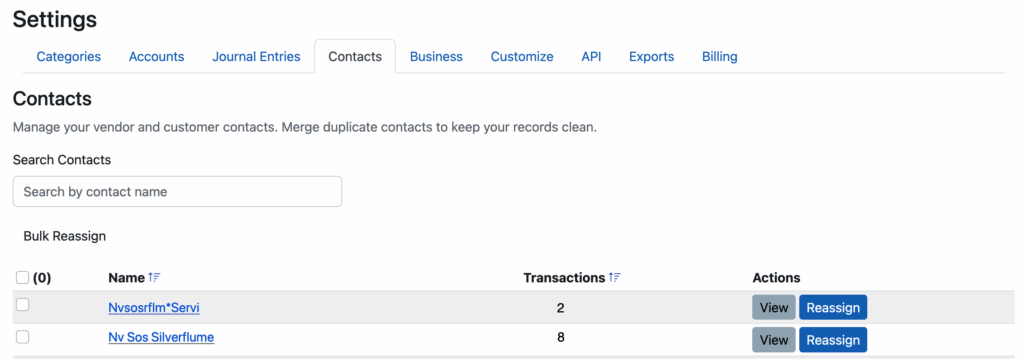
As you can see in the example above, we have two contacts that look awfully similar. If you click on the contact name (or the “View” button) you can see the transactions that use that contact name:
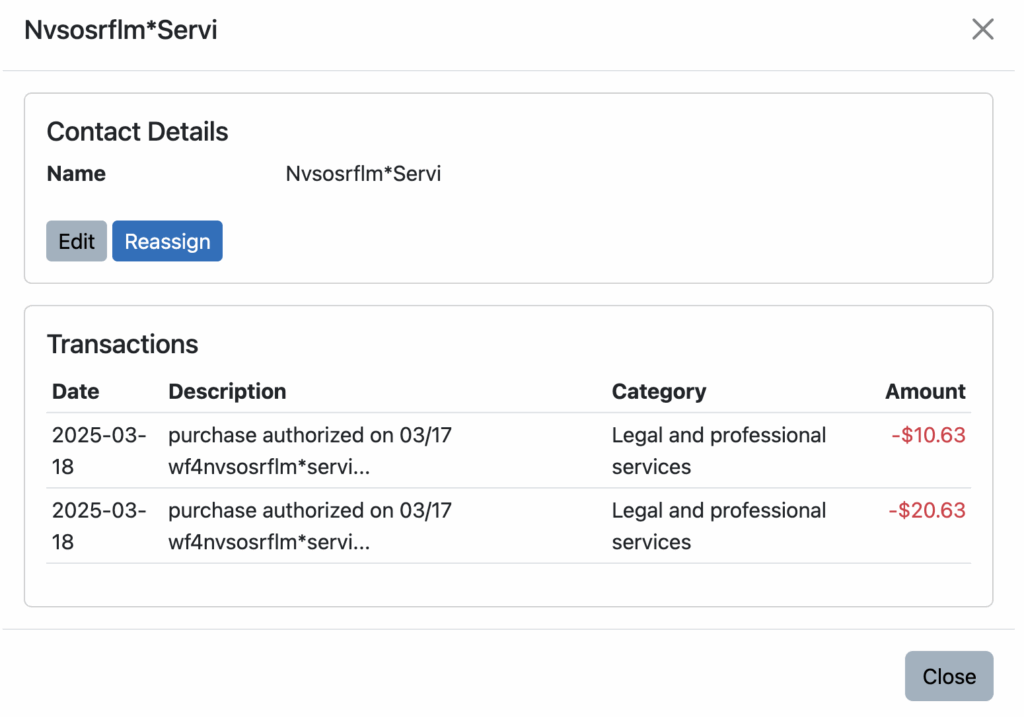
These transactions look like they are consistent with the more commonly used contact name of “Nv Sos Silverflume”, so let’s reassign these transactions to that name:
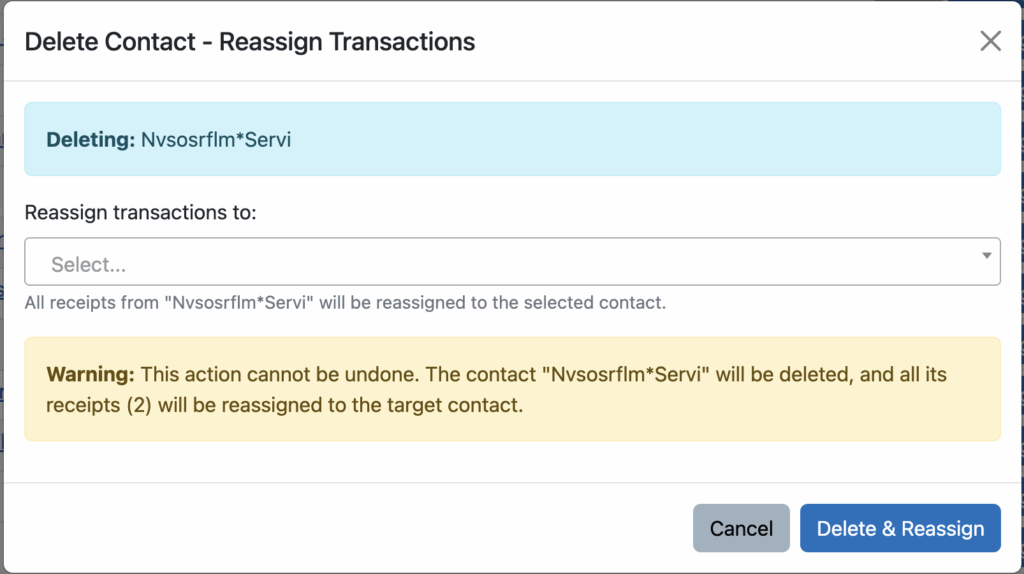
The just start typing in and choose the name of Contact you want to reassign these transactions to:
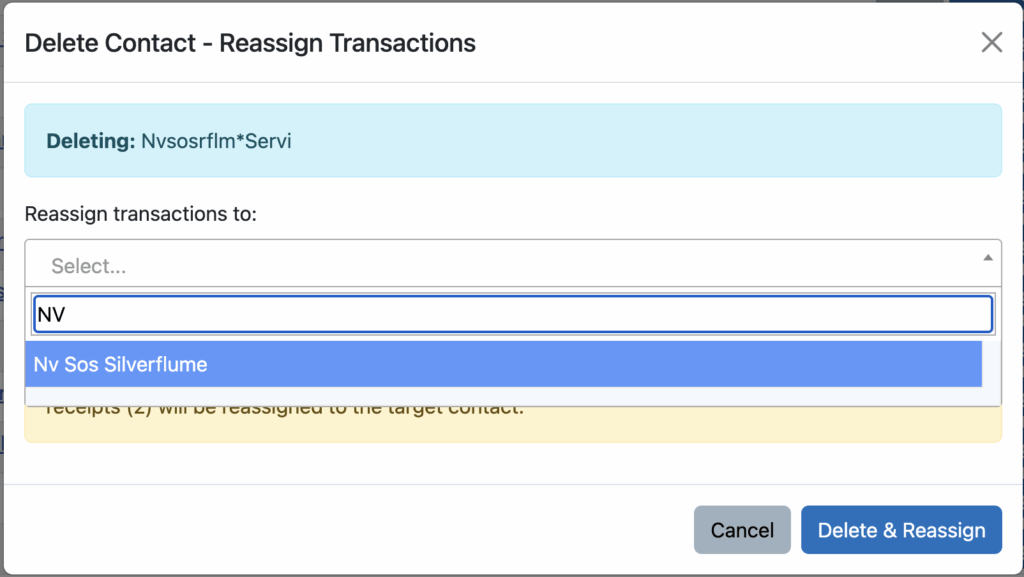
Click “Delete & Reassign”, and Seller Ledger will move those two transactions to the new Contact name and remove the old one. From here, the list of contacts is updated as such:

That’s it. Now as you are editing/managing contacts elsewhere in Seller Ledger, your list of options will look quite a bit cleaner. And your Expenses by Vendor report will thank you for it:)