
Just Type in Item Costs to See Your Profit

A lot of sellers would love to see how much profit they make on each product, but aren’t so excited to track every inventory purchase from acquisition through sale.
To help those customers, we’re pleased to announce a new option that allows any seller to simply type in item costs and see their profit on any sale, after it’s already been made.

How can I enter my item costs?
To be able to take advantage of this feature, you do need to turn on inventory tracking. While you will technically be using the “continuous” inventory approach, you can skip a lot of the steps.
Once you have inventory tracking turned on, simply go to Inventory -> Sold and you’ll see a list of your recent sales, with an “Add costs” button in each row. Click on that button for a sale and choose the bottom option: “Enter a cost”
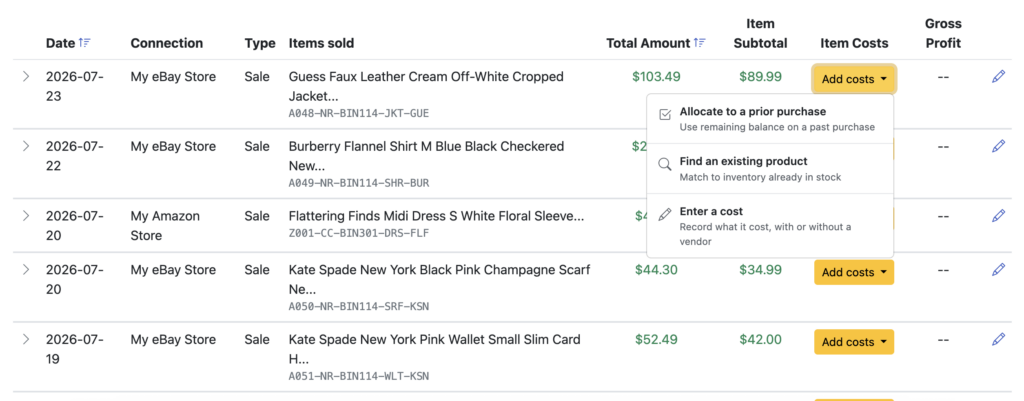
This will bring up a simple form where you can just record the amount you paid for that item, and we’ll handle the rest. You can also assign a specific vendor name and change the purchase date, but it’s your choice. If you want to simply type in the costs of as many items as you can, as quickly as you can – you can now do so.
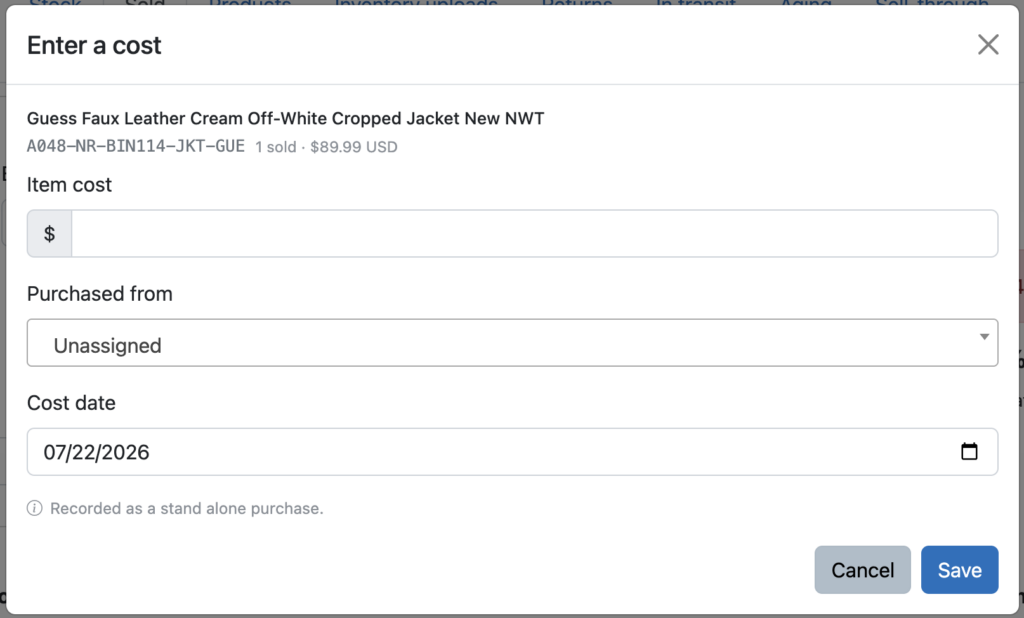
As soon as you click “Save”, you’ll instantly see your gross profit. And your cost of goods sold will increase by the amount you entered.
Ready to automate your eCommerce bookkeeping?
Join thousands of sellers who save hours every month with Seller Ledger.
No credit card required