
Simpler Importing of CSV Files

For a while now, Seller Ledger has offered ways to upload all kinds of data using CSV files.
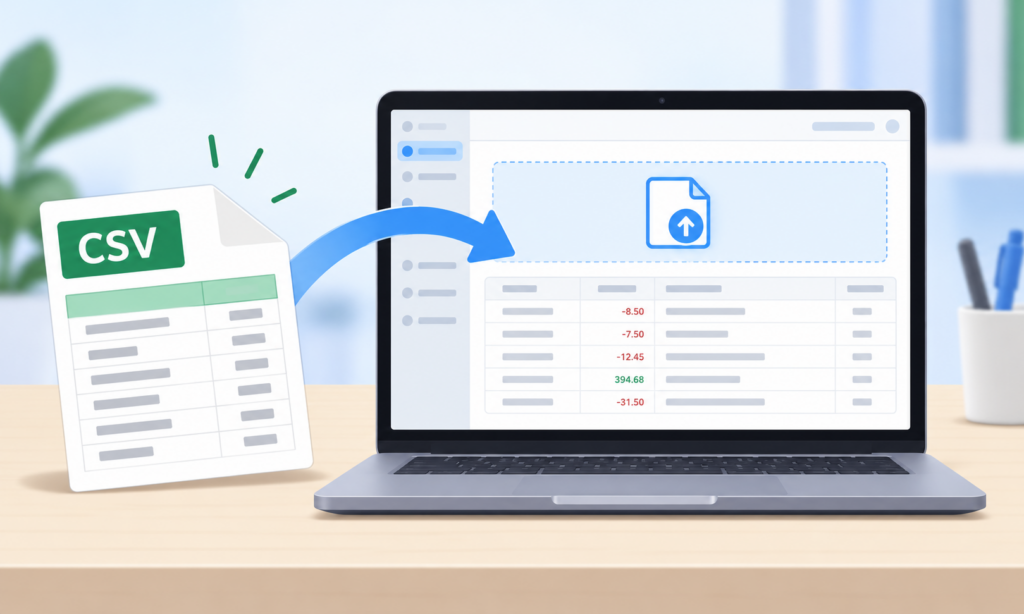
For example, Seller Ledger lets you bring in CSV data for the following:
- Mileage
- Bank and credit card accounts with poor direct connectivity
- Bulk income and expense transactions
- Manual asset account transactions and orders/refunds (which can be used to import sales data from not-yet-supported marketplaces)
- Single inventory purchase with multiple line items
- Bulk inventory with multiple items across multiple purchases
To make life even easier, we’ve just rolled out some major improvements to this functionality.
More flexible layouts
Until now, we’ve required that customers format their files to fit our templates. However, that’s now changed. You can upload the file in the format you (or the bank, or a third-party marketplace) already have. Seller Ledger will try to parse it as-is. You can now have slightly different column names and they can be in a different order. In fact, with bank and credit card files, different banks use signs differently – Seller Ledger can now figure out what they mean.
Preview your data before uploading
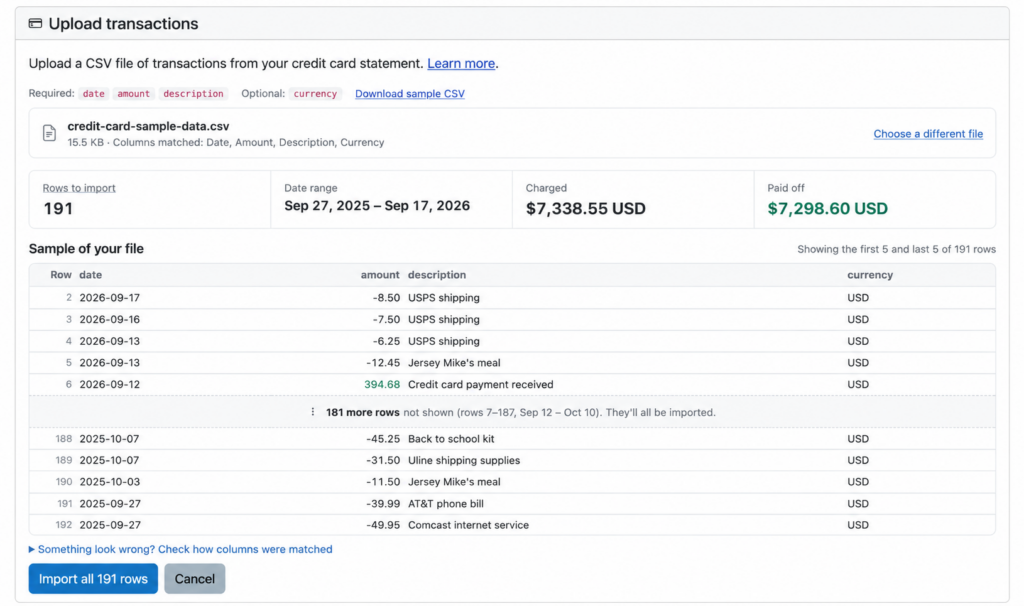
To date, when uploading a CSV file, you would wait for us to process it and either receive a less-than-helpful error message, or the data would be imported. Now, when you upload your file, Seller Ledger will give you a preview of the data before it gets added to your books. If you see something that looks off, simply cancel, change your file, and try again.
Ready to automate your eCommerce bookkeeping?
Join thousands of sellers who save hours every month with Seller Ledger.
No credit card required