A lot of sellers would love to see how much profit they make on each product, but aren’t so excited to track every inventory purchase from acquisition through sale.
To help those customers, we’re pleased to announce a new option that allows any seller to simply type in item costs and see their profit on any sale, after it’s already been made.
How can I enter my item costs?
To be able to take advantage of this feature, you do need to turn on inventory tracking. While you will technically be using the “continuous” inventory approach, you can skip a lot of the steps.
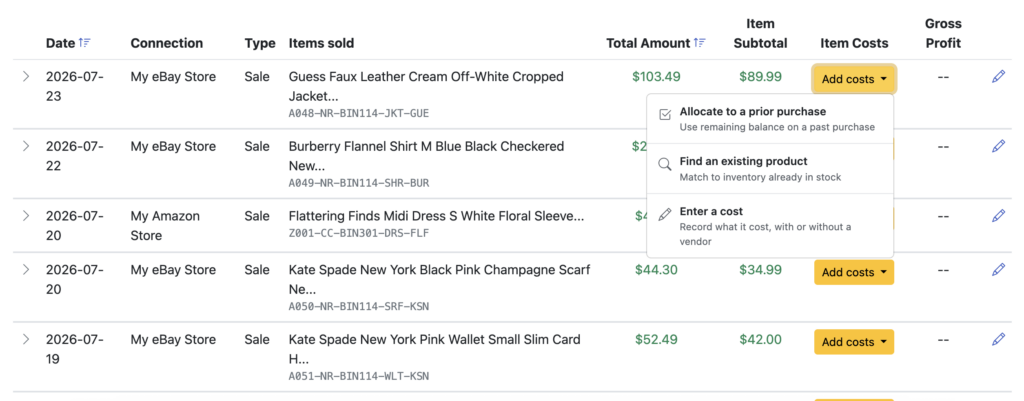
Once you have inventory tracking turned on, simply go to Inventory -> Sold and you’ll see a list of your recent sales, with an “Add costs” button in each row. Click on that button for a sale and choose the bottom option: “Enter a cost”
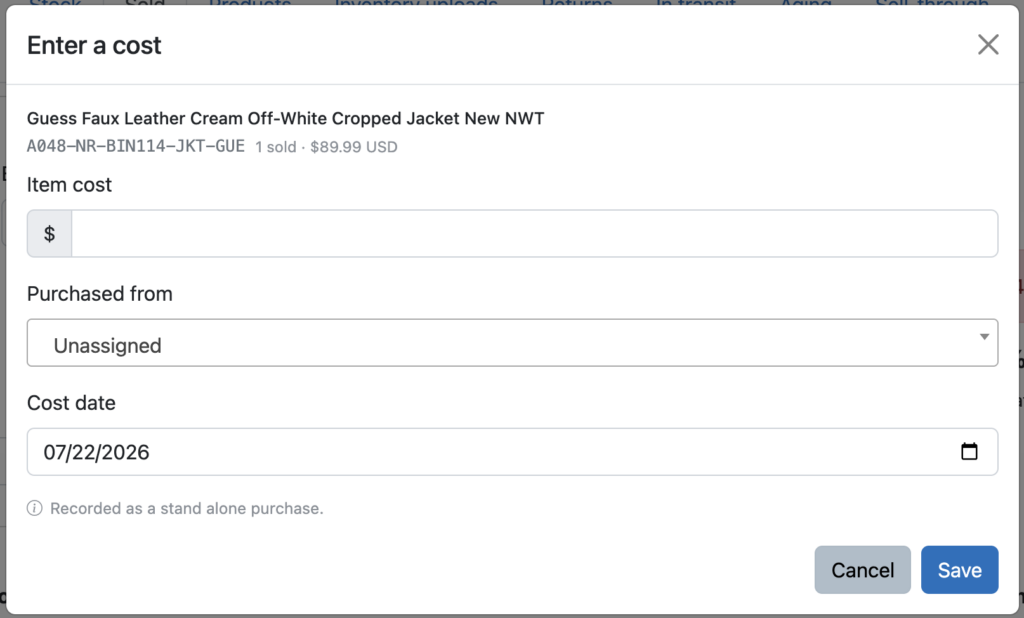
This will bring up a simple form where you can just record the amount you paid for that item, and we’ll handle the rest. You can also assign a specific vendor name and change the purchase date, but it’s your choice. If you want to simply type in the costs of as many items as you can, as quickly as you can – you can now do so.
As soon as you click “Save”, you’ll instantly see your gross profit. And your cost of goods sold will increase by the amount you entered.
Ready to automate your eCommerce bookkeeping?
Join thousands of sellers who save hours every month with Seller Ledger.
Seller Ledger’s integration count has hit a baker’s dozen – thirteen! We are pleased to announce another direct integration with TikTok to allow you to automate your TikTok Shop accounting.
How do I link my TikTok Shop account?
From your Seller Ledger dashboard, just click the “Add Channels, Banks and Accounts” button and select the TikTok badge. Follow the steps to log into your shop and we’ll immediately start importing your sales history, as well as commissions and fees.
Ready to automate your eCommerce bookkeeping?
Join thousands of sellers who save hours every month with Seller Ledger.
If you have built or bought a spreadsheet template for tracking your product purchases and costs, you can now use that to get a jump start on automating your eCommerce accounting and getting better insights into your net profits. Seller Ledger now lets you upload inventory costs from your spreadsheet.
To start, this feature only works if you have inventory tracking turned on and want to see your profits at the item-level. If you are writing off cost of goods sold as you go, you’ll be more interested in just uploading a list of expenses.
However, if you’ve already been tracking each purchase and sale, you’ve made the investment to see your profitability per item.
How to upload your existing inventory costs from your spreadsheet
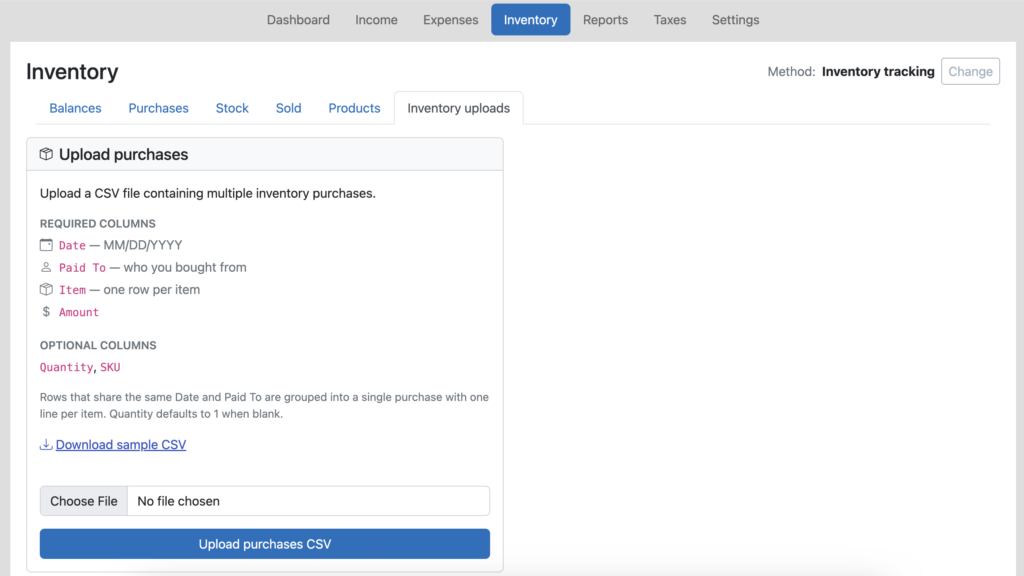
Just go to the Inventory tab in Seller Ledger, and you will see a new “Inventory uploads” sub-tab. Next, open your existing inventory purchase spreadsheet and save it as a new file, in a CSV format. And make sure to rename any of the columns to match our layout.
Pro tip
If you don’t already have unique SKUs for each item in your spreadsheet, we strongly recommend adding them. They are the secret to automating the matching of sales to cost, reducing inventory and calculating cost of goods sold.
That’s it. You’ve just jump-started your switch to a more automated method for tracking your profits on each sale/item.
Ready to automate your eCommerce bookkeeping?
Join thousands of sellers who save hours every month with Seller Ledger.
Perhaps the most important financial metric for any eCommerce business, and one of the hardest to calculate at scale, is the net profit you make on every item sold.
Well, Seller Ledger has just rolled out the “holy grail” of eCommerce reports – the ability to see your profit on each item sale.
Do you know which products are actually making you money?
Net profit per item sale is what you’re left with after subtracting all directly-linked expenses from the income you produce by selling an item. It’s the ultimate bottom line.
But figuring out this number is incredibly difficult, particularly if you sell on more than one channel. You need to account for so many potential numbers, which vary widely by channel:
Sales price
Any discounts offered
Shipping charges you may collect from the buyer
Sales commissions paid to the listing platform
Potential payment processing fees
Advertising/promotion/boosting fees
Potential inventory storage fees
and many more
And while each platform provides these numbers, they are not always presented together in a single view.
Then, there’s what is often the single biggest determination of your profit – cost of goods sold. Most platforms don’t know this, and a lot of sellers prefer not to share it (for good reason – given concerns about platforms using that data against them.)
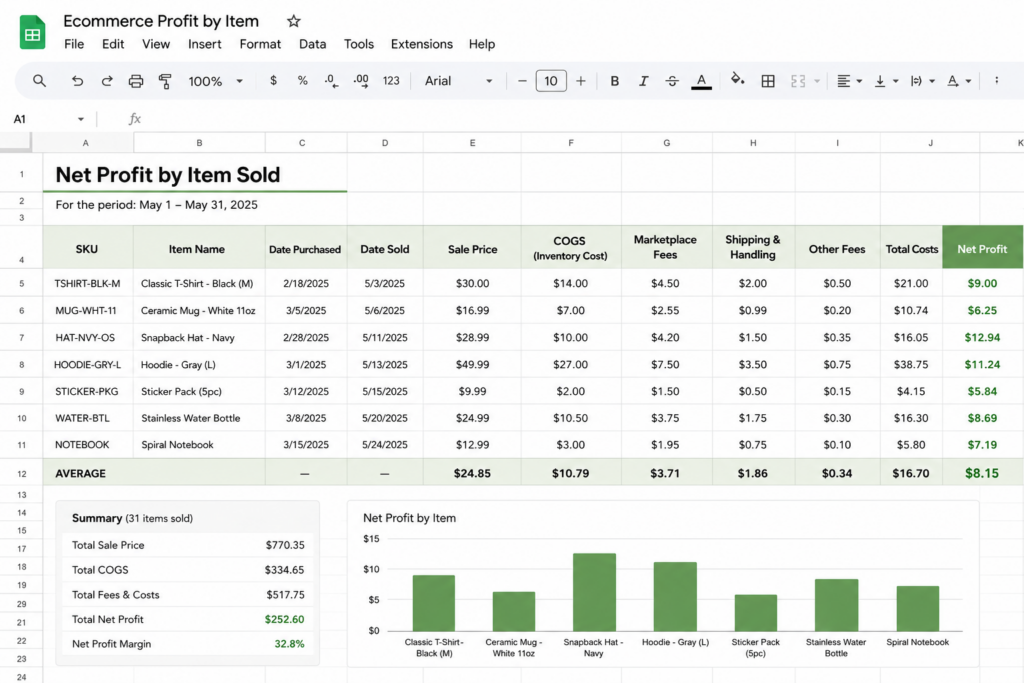
The classic solution—spreadsheets!
Sellers have been using spreadsheets to try to figure this out for decades. In fact, there are lots of experienced sellers and influencers across the web offering spreadsheet templates to help sellers track these numbers.
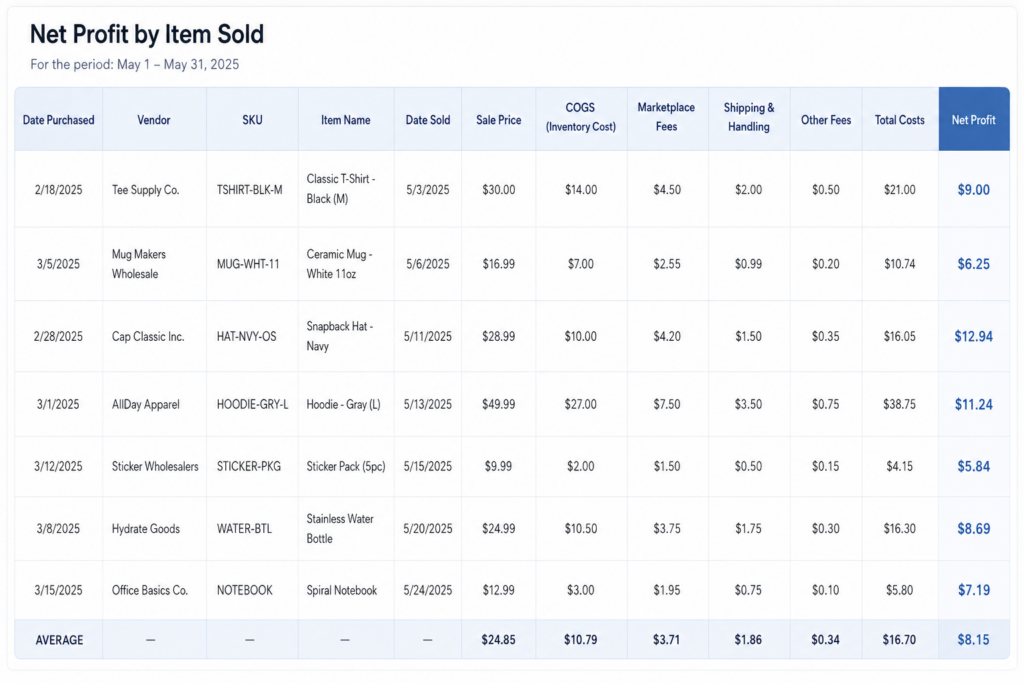
Does this look familiar?
While very good at calculating the numbers you want to see, there is one massive limitation in these spreadsheets: the amount of time to keep them up to date. If only these spreadsheets could update themselves.
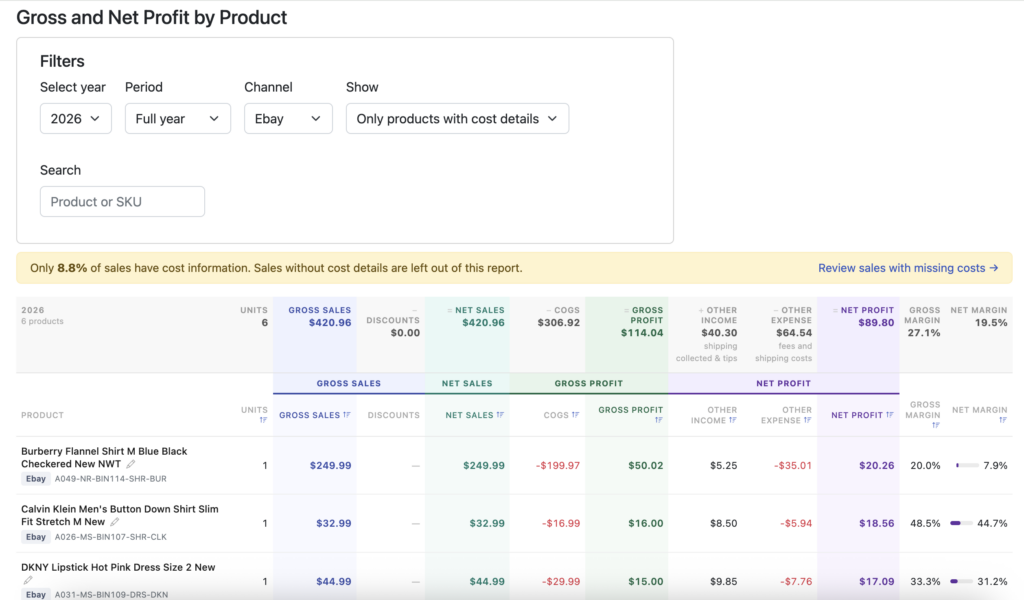
Actual profit, for every product, by channel—all in one place
If you go to the Reports tab, you will see a new sub-tab called “Gross and Net Profit”. This replaces and expands the prior “Gross Profit” report. Click into it to see your full profit picture by product.
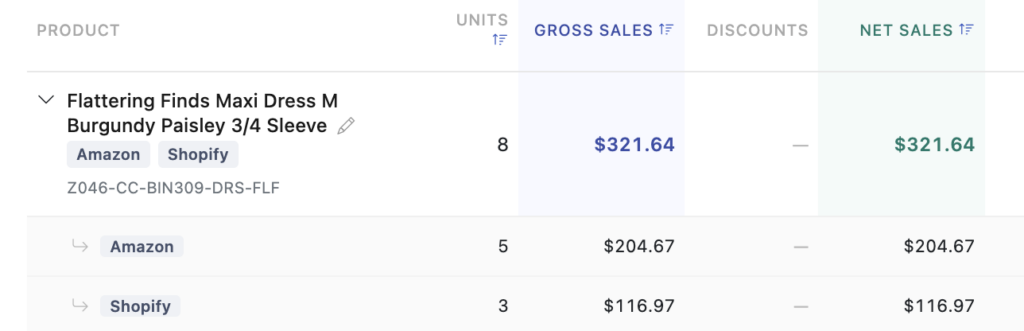
You can view by individual channel or by all of them. If you have sold the same product in multiple channels, you’ll be able to expand that row and see and compare the profit numbers between those channels.
In addition, for those sellers with a LOT of inventory, you can search both by product name and SKU.
What you can do with this information
Knowing how much you make on each item, on each channel, gives you the power to make smarter decisions in your business:
Source better products: You are now armed with the most accurate information on which items generate the most profit. Find more of them.
Spend your ad dollars better: Make sure your advertising/promotional spend is paying off for you
Change your pricing on each channel: You can now factor in all costs from a channel to see if pricing needs to be adjusted.
Allocate inventory differently: Prioritize the channel/product combinations that make you the most profit.
Stop losing money: Identify any products on any specific channels and stop selling them.
How to get the most from this report
In order to get set up to have this information at your fingertips, there a few things that will help tremendously when using Seller Ledger.
Connect your sales channels: first, you need to connect your sales channel/platform to Seller Ledger. You can find our most current list here, and know that it is likely to continue growing.
Turn on inventory tracking: If you are just writing off “cost of goods sold” as you buy inventory, this level of insight won’t be available to you. But if you’d like to get this report, go to the Inventory tab and change your method to “Inventory Tracking.” We’ve also made it very easy to switch back if you prefer not to continue.
Load your item costs into Seller Ledger: Make sure you include unique SKUs for each item. As a reminder, you can add them individually, upload a receipt or even a CSV file.
Include SKU when listing your item: most platforms make this pretty obvious when listing, while others may require an extra step.
Not all platforms support automatic SKU matching
The following connected platforms don’t provide support for SKU fields: Mercari, Depop, Manapool
However, we do provide the ability to match sold items to inventory after-the-fact, so you can still get the insights you need.
Ready to automate your eCommerce bookkeeping?
Join thousands of sellers who save hours every month with Seller Ledger.
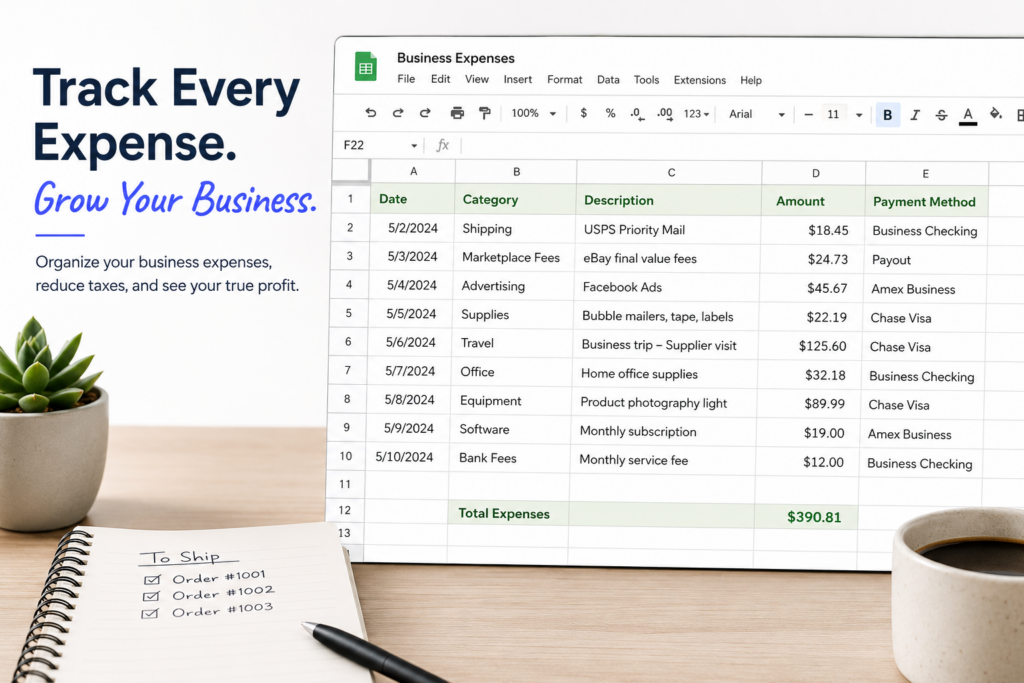
Have you been tracking business expenses in a spreadsheet for a while? Does the leap to traditional accounting software feel like more work than it’s worth? Well, no more.
In our never-ending quest to save sellers time, we’ve added the ability to upload expenses (and income transactions, if you so desire) in bulk, using CSV formatted files. Seller Ledger lets you keep all of that hard work and gives you a leg up when you want to try automating your accounting and bookkeeping.
How to upload your expenses
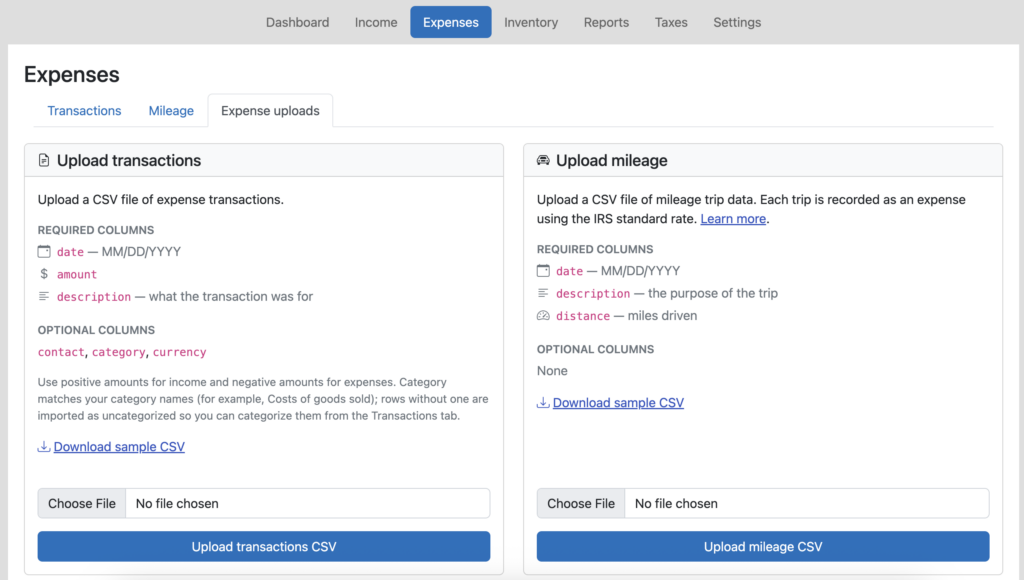
Just go to the Expenses tab, and you will now see a tab that says “Expense Uploads”. This is also where you can find the ability to upload many mileage trips at once.
Just follow the formatting guidelines on the screen (or take a look at our sample CSV template) and load your transactions. Plus, as an added bonus, you can include category names in there which, if they are the same as the ones you have in Seller Ledger, will group and total up your expenses and ensure they show up in the correct line of your tax report.
For income transactions, just do the same thing from the Income tab.
Simplify cost of goods sold if you don’t track inventory
If you don’t track inventory, but do have a running list of your cost of goods sold purchases, just include the “category” column and make sure to label those transactions as “Cost of Goods Sold.” Then check out how much more accurate your numbers look, including seeing your overall gross profit.
As you may have seen in our recent efforts to help card sellers via our TCGplayer integration, we are pleased to announce that you can now automate accounting for Mana Pool sellers as well.
Connecting your Mana Pool account
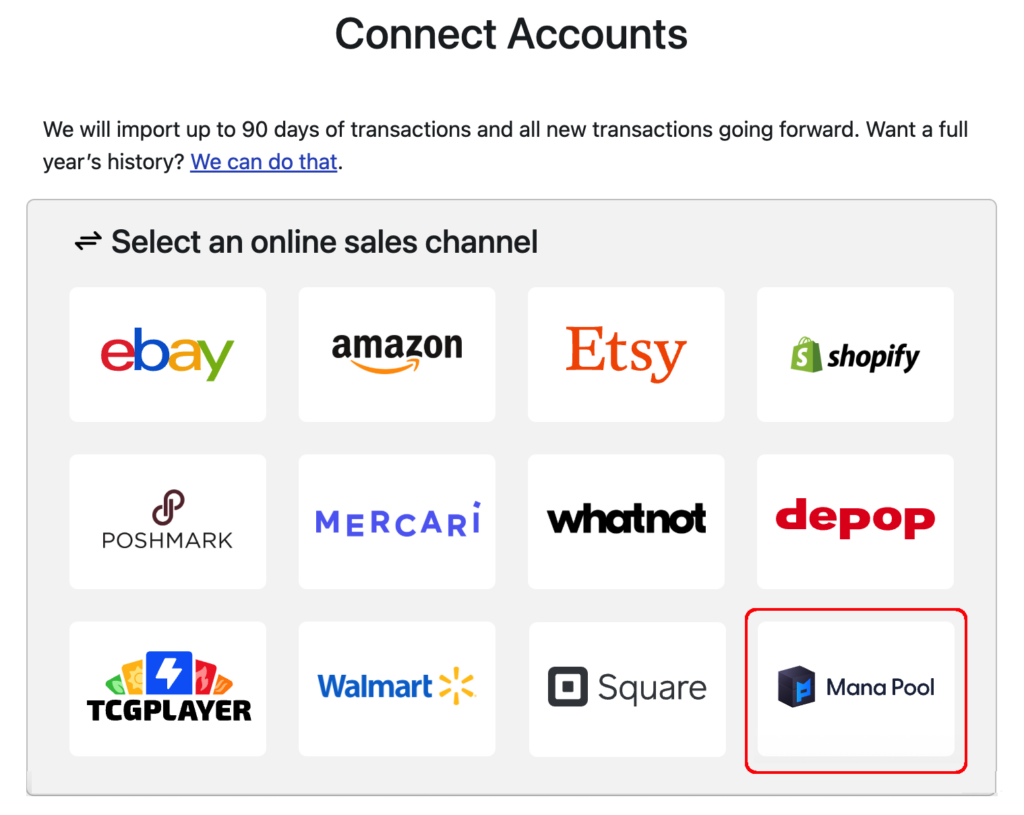
To link your Mana Pool account, simply click the “Add Channels, Banks and Accounts” button on your dashboard. Then, click the Mana Pool logo:
On the next screen, you’ll need to enter the email address you use with your Mana Pool account, as well as your API Key. This allows Seller Ledger to connect directly to your account and pull in your sales and fee history.
Once you do this, Seller Ledger will start importing your sales and fee history from Mana Pool, and will continue to update each and every day.
Ready to automate your eCommerce bookkeeping?
Join thousands of sellers who save hours every month with Seller Ledger.
Mercari customers have been able to upload their sales history into Seller Ledger via CSV files for a while. But we are pleased to announce that you can now further automate your Mercari accounting.
Using the Chrome browser and Seller Ledger’s custom-built Browser Extension, Mercari sellers can now get their sales and fee history imported into Seller Ledger on a nightly basis. Not only that, but we also now import your payout information (which is not included in the downloadable sales reports from Mercari).
How to automate your Mercari accounting
In order to fully automate your Mercari accounting within Seller Ledger, you only need two things:
1. You should use the Chrome browser when accessing Seller Ledger so that you can also make use of the second tool (below).
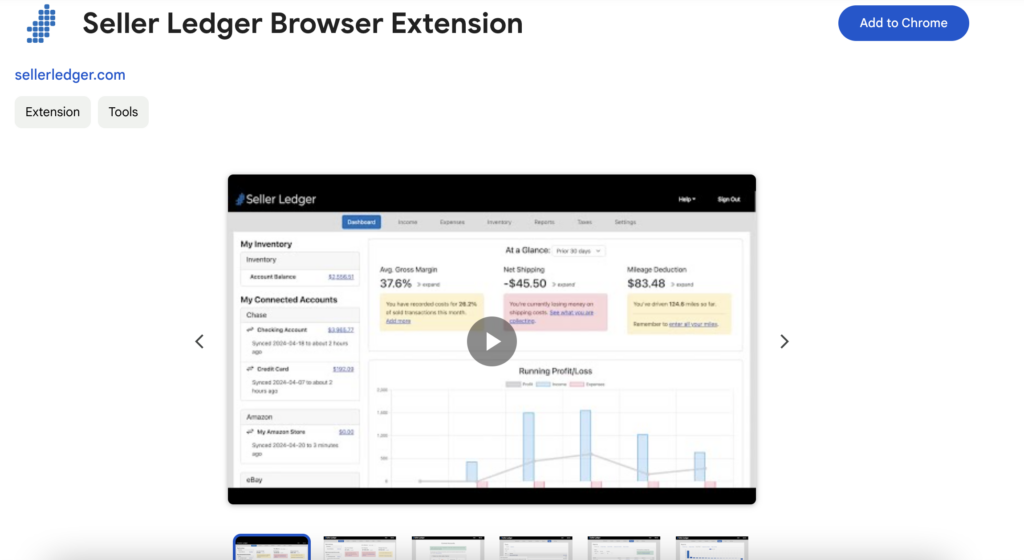
2. Once you are using Chrome, you will want to install Seller Ledger’s custom-built Browser Extension. This extension allows Seller Ledger to automatically pull down and import the proper transaction details.
To learn more about how to automate Mercari accounting, view this support article.
Once you are properly set up, Seller Ledger will regularly access your Mercari account and retrieve the order, coupon, shipping, and fee information.
Ready to automate your eCommerce bookkeeping?
Join thousands of sellers who save hours every month with Seller Ledger.
We have had the ability to upload Depop sales history into Seller Ledger for a little while now. However, today we are excited to announce that you can now automate your Depop accounting even further.
Using the Chrome browser and Seller Ledger’s custom-built Browser Extension, Depop sellers can now get their sales and fee history imported into Seller Ledger on a nightly basis.
How to automate your Depop accounting
In order to fully automate your Depop accounting within Seller Ledger, you only need two things:
1. You should use the Chrome browser when accessing Seller Ledger so that you can also make use of the second tool (below).
2. Once you are using Chrome, you will want to install Seller Ledger’s custom-built Browser Extension. This extension allows Seller Ledger to automatically pull down and import the proper transaction details.
To learn more about how to automate Depop accounting, view this support article.
Once you are properly set up, Seller Ledger will regularly access your Depop account and retrieve the order, coupon, shipping, and fee information.
Ready to automate your eCommerce bookkeeping?
Join thousands of sellers who save hours every month with Seller Ledger.
To better help you manage the products you sell, Seller Ledger has added a new view under the Inventory tab. In addition, for those of you who are not tracking inventory (i.e. using a “cash-based” approach) and writing off cost of goods sold directly, you’ll notice that the Inventory tab now has more useful features.
Finding your products
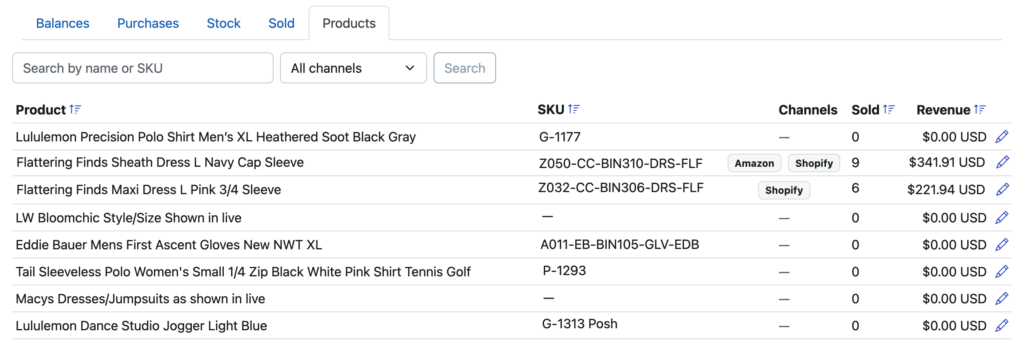
Clicking into the Inventory tab, you will see a new sub-tab called “Products”. For those of you already tracking inventory, it will show to the right of the other tabs.
For those of you writing off cost of goods directly, you’ll also have access to the new Products tab, just without the extra Inventory tabs:
Editing your products
Click into your products tab to a see a list of every product that you have either sold or loaded purchase/cost information for. We show you each product’s name, SKU, how much has been sold and on what channels.
You can sort by product name, by SKU, number sold or revenue.
If you have multiple copies of the same product that use slightly different names, now you can correct that. The same holds for cases where you are missing SKUs or using the same SKU for different items. Correcting those makes it possible to fully automate your cost of goods sold and see your profit per order.
Ready to automate your eCommerce bookkeeping?
Join thousands of sellers who save hours every month with Seller Ledger.
Do you sell cards from top games like Magic: The Gathering, Pokémon, Yu-Gi-Oh!, One Piece and Disney Lorcana? Well, now there’s an easier way to track your sales and determine your profits. Using our updated Chrome browser extension, Seller Ledger will regularly import the key information you need to determine the profitability and taxes owed for your business, including:
Card and pack item prices
Shipping collected
Commissions
Transaction fees
Item fees
Payouts
Plus, if you track your inventory costs with unique SKUs, Seller Ledger will automatically tie those sales back to the item costs, reduce your inventory and update cost of goods sold.
Seller Ledger matches payouts to your bank deposits
Seller Ledger does something pretty powerful when we import your sales, fee and payout history from TCGplayer. We compare all imported transactions from TCGplayer to the payouts we receive and make sure the sum total of all of the transactions in the payout match the amount of each payout.
We even organize your transactions into two sections when you click into your TCGplayer account: “Not paid out” transactions and “Paid out” transactions. In fact, from the TCGplayer account summary view, you can click into any payout to see every single transaction that makes up that payout. This makes sure that your financial amounts from TCGplayer are accurate.
Lastly, if you choose to link your bank account to Seller Ledger, we will also automatically match the payouts that come from TCGplayer to the deposits when they show up in Seller Ledger. These are properly treated as transfers, so you avoid any risk of double counting.
How to automate your TCGplayer accounting
In order to link your TCGplayer account to Seller Ledger, you need only do the following:
1. You should use the Chrome browser when accessing Seller Ledger so that you can also make use of the second tool (below).
2. Once you are using Chrome, you will want to install Seller Ledger’s custom-built Browser Extension. This extension allows Seller Ledger to automatically pull down and import the proper transaction details.
Once you are properly set up, Seller Ledger will regularly access your TCGplayer account and retrieve the order, shipping, commission, fee, and payout information.
Ready to automate your eCommerce bookkeeping?
Join thousands of sellers who save hours every month with Seller Ledger.