As you may have seen in our recent efforts to help card sellers via our TCGplayer integration, we are pleased to announce that you can now automate accounting for Mana Pool sellers as well.
Connecting your Mana Pool account
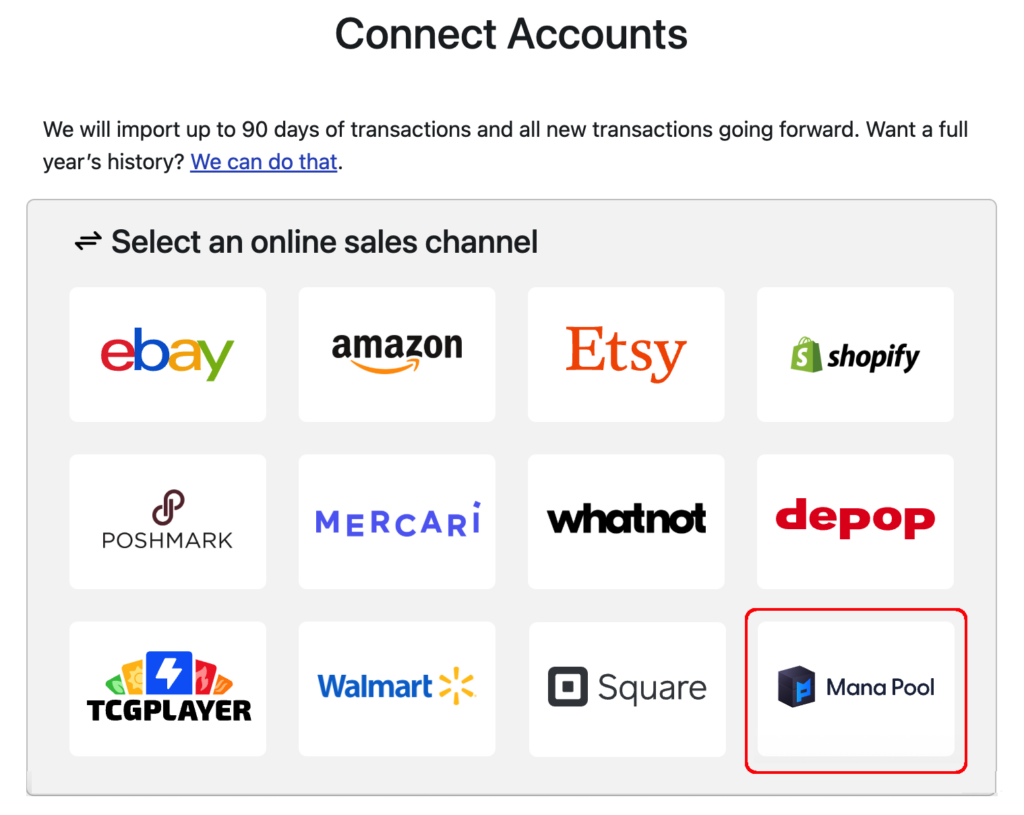
To link your Mana Pool account, simply click the “Add Channels, Banks and Accounts” button on your dashboard. Then, click the Mana Pool logo:
On the next screen, you’ll need to enter the email address you use with your Mana Pool account, as well as your API Key. This allows Seller Ledger to connect directly to your account and pull in your sales and fee history.
Once you do this, Seller Ledger will start importing your sales and fee history from Mana Pool, and will continue to update each and every day.
Ready to automate your eCommerce bookkeeping?
Join thousands of sellers who save hours every month with Seller Ledger.
Mercari customers have been able to upload their sales history into Seller Ledger via CSV files for a while. But we are pleased to announce that you can now further automate your Mercari accounting.
Using the Chrome browser and Seller Ledger’s custom-built Browser Extension, Mercari sellers can now get their sales and fee history imported into Seller Ledger on a nightly basis. Not only that, but we also now import your payout information (which is not included in the downloadable sales reports from Mercari).
How to automate your Mercari accounting
In order to fully automate your Mercari accounting within Seller Ledger, you only need two things:
1. You should use the Chrome browser when accessing Seller Ledger so that you can also make use of the second tool (below).
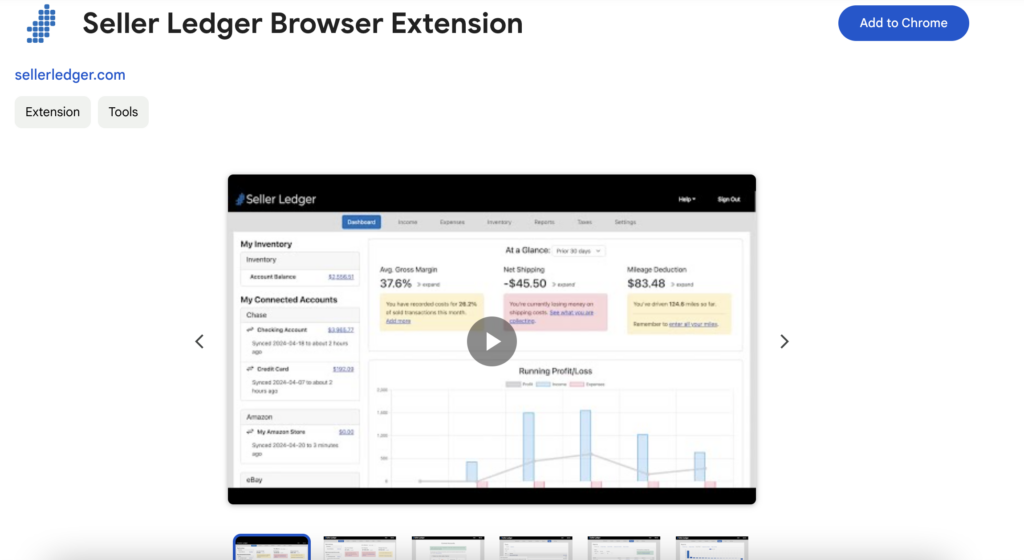
2. Once you are using Chrome, you will want to install Seller Ledger’s custom-built Browser Extension. This extension allows Seller Ledger to automatically pull down and import the proper transaction details.
To learn more about how to automate Mercari accounting, view this support article.
Once you are properly set up, Seller Ledger will regularly access your Mercari account and retrieve the order, coupon, shipping, and fee information.
Ready to automate your eCommerce bookkeeping?
Join thousands of sellers who save hours every month with Seller Ledger.
We have had the ability to upload Depop sales history into Seller Ledger for a little while now. However, today we are excited to announce that you can now automate your Depop accounting even further.
Using the Chrome browser and Seller Ledger’s custom-built Browser Extension, Depop sellers can now get their sales and fee history imported into Seller Ledger on a nightly basis.
How to automate your Depop accounting
In order to fully automate your Depop accounting within Seller Ledger, you only need two things:
1. You should use the Chrome browser when accessing Seller Ledger so that you can also make use of the second tool (below).
2. Once you are using Chrome, you will want to install Seller Ledger’s custom-built Browser Extension. This extension allows Seller Ledger to automatically pull down and import the proper transaction details.
To learn more about how to automate Depop accounting, view this support article.
Once you are properly set up, Seller Ledger will regularly access your Depop account and retrieve the order, coupon, shipping, and fee information.
Ready to automate your eCommerce bookkeeping?
Join thousands of sellers who save hours every month with Seller Ledger.
To better help you manage the products you sell, Seller Ledger has added a new view under the Inventory tab. In addition, for those of you who are not tracking inventory (i.e. using a “cash-based” approach) and writing off cost of goods sold directly, you’ll notice that the Inventory tab now has more useful features.
Finding your products
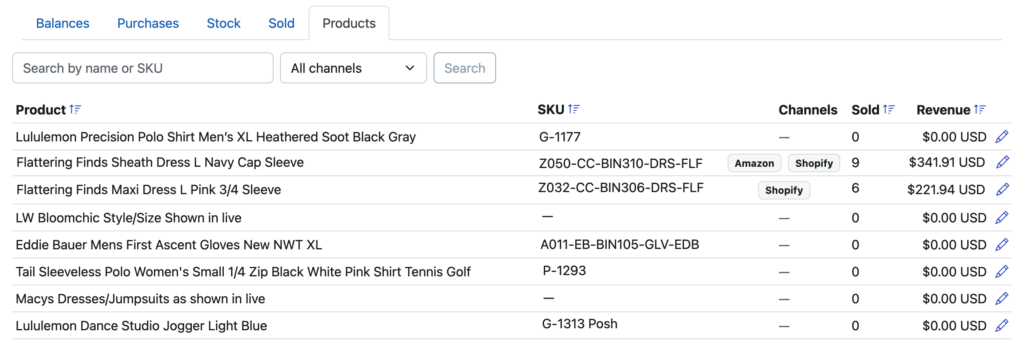
Clicking into the Inventory tab, you will see a new sub-tab called “Products”. For those of you already tracking inventory, it will show to the right of the other tabs.
For those of you writing off cost of goods directly, you’ll also have access to the new Products tab, just without the extra Inventory tabs:
Editing your products
Click into your products tab to a see a list of every product that you have either sold or loaded purchase/cost information for. We show you each product’s name, SKU, how much has been sold and on what channels.
You can sort by product name, by SKU, number sold or revenue.
If you have multiple copies of the same product that use slightly different names, now you can correct that. The same holds for cases where you are missing SKUs or using the same SKU for different items. Correcting those makes it possible to fully automate your cost of goods sold and see your profit per order.
Ready to automate your eCommerce bookkeeping?
Join thousands of sellers who save hours every month with Seller Ledger.
Do you sell cards from top games like Magic: The Gathering, Pokémon, Yu-Gi-Oh!, One Piece and Disney Lorcana? Well, now there’s an easier way to track your sales and determine your profits. Using our updated Chrome browser extension, Seller Ledger will regularly import the key information you need to determine the profitability and taxes owed for your business, including:
Card and pack item prices
Shipping collected
Commissions
Transaction fees
Item fees
Payouts
Plus, if you track your inventory costs with unique SKUs, Seller Ledger will automatically tie those sales back to the item costs, reduce your inventory and update cost of goods sold.
Seller Ledger matches payouts to your bank deposits
Seller Ledger does something pretty powerful when we import your sales, fee and payout history from TCGplayer. We compare all imported transactions from TCGplayer to the payouts we receive and make sure the sum total of all of the transactions in the payout match the amount of each payout.
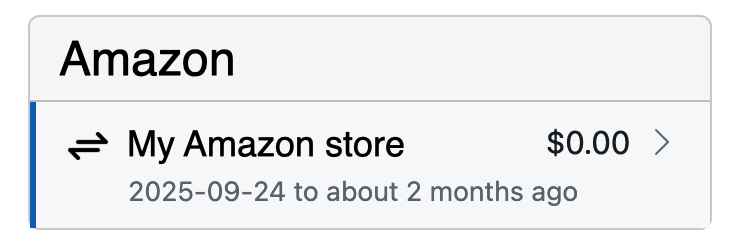
We even organize your transactions into two sections when you click into your TCGplayer account: “Not paid out” transactions and “Paid out” transactions. In fact, from the TCGplayer account summary view, you can click into any payout to see every single transaction that makes up that payout. This makes sure that your financial amounts from TCGplayer are accurate.
Lastly, if you choose to link your bank account to Seller Ledger, we will also automatically match the payouts that come from TCGplayer to the deposits when they show up in Seller Ledger. These are properly treated as transfers, so you avoid any risk of double counting.
How to automate your TCGplayer accounting
In order to link your TCGplayer account to Seller Ledger, you need only do the following:
1. You should use the Chrome browser when accessing Seller Ledger so that you can also make use of the second tool (below).
2. Once you are using Chrome, you will want to install Seller Ledger’s custom-built Browser Extension. This extension allows Seller Ledger to automatically pull down and import the proper transaction details.
Once you are properly set up, Seller Ledger will regularly access your TCGplayer account and retrieve the order, shipping, commission, fee, and payout information.
Ready to automate your eCommerce bookkeeping?
Join thousands of sellers who save hours every month with Seller Ledger.
Seller Ledger recently announced the ability to help eCommerce sellers track and report on their sales tax obligations. To make that possible, we built out a full sales tax engine, complete with state and local jurisdiction-level breakdowns. Now we are making that functionality available to developers and potential partners through the release of a sales tax calculations endpoint in our API.
How to calculate sales tax
To accurately calculate the sales tax on an eCommerce order, you need to know a number of things:
The amount of each item within an order
Whether shipping was collected from the customer and whether it is taxable
The shipping address of the purchasing customer
The states where you have nexus (physical or economic)
The sourcing rules for a given order
Whether the specific item is subject to any special tax rules or exemptions
Fortunately, Seller Ledger makes all of that simple. We automatically track nexus for you based on your account. And we make it very easy to submit the necessary information to our API to get the right amount to collect. If you collect enough information to properly fulfill an order, you will have enough information to tell Seller Ledger what it needs to know.
Coming soon: Product taxability
As of the date of this post, we are still working on a comprehensive set of product taxability rules. Stay tuned for that release.
Get the full breakdown
Because we have a pretty extensive history in sales tax (our founders ran product and engineering for TaxJar,) we know that a single tax amount isn’t sufficient for all clients. So, our API returns not only the total amount of sales tax due on an order, but we also break it down by how much is owed to each jurisdiction, including:
State amount collected
County amount collected
City amount collected
Special district amount collected
To learn more about our new sales tax calculations endpoint, visit our API documentation.
Pricing for sales tax calculations is the exact same as it is for Seller Ledger. We simply charge you based on the number of monthly transactions you have flow through our system. Plans start at $10 per month with a 30-day free trial.
Ready to automate your eCommerce bookkeeping?
Join thousands of sellers who save hours every month with Seller Ledger.
In our continued efforts to simply eCommerce accounting, we’re pleased to announce the ability to sync your Square account with Seller Ledger. This provides the biggest step to better automate accounting for Square sellers.
As we did before with our Shopify integration, we allow Square sellers to bring in both online and point-of-sale transactions.
To link your Square account, simply click the “Add Channels, Banks and Accounts” button on your dashboard. Then, click the Square logo:
Log in to Square and, once you are returned to Seller Ledger, we will begin importing you transaction history. Doing so will allow us to bring in sales, returns, fees and even sales tax that you may have collected – all broken out in detail and summarized to help you with tax filing.
And as with any new functionality, we’d love to hear any constructive feedback you might have. Email us at [email protected].
Ready to automate your eCommerce bookkeeping?
Join thousands of sellers who save hours every month with Seller Ledger.
Since we launched, Seller Ledger has automatically imported up to 90 days of transaction history from connected marketplaces, eCommerce platforms, banks and credit cards. This was designed to give everyone a chance to really get to see how the software works for them, on real data, during the 30-day free trial.
However, a number of customers over the years have asked for the ability to choose a specific start date. This has been most prevalent at the beginning of tax years, as customers like to start “fresh” (often after switching from more expensive, more complex solutions:)
Setting your own start date
While Seller Ledger still imports 90 days automatically, it is now super simple to go in and change, on connected-account by connect-account basis, when you would like data to import from.
First, just click on the connected accounts whose import start date you’d like to change:
Next, click on the edit/pencil icon at the top of the account view:
You’ll see a new option to choose a start date. Just pick the start date you’d like:
Click “Save” and you’re all set.
If you had any transactions prior to the new date you’ve entered, they will be deleted from the system. If you don’t want those older transactions deleted, DO NOT set a more current date than you want transactions for.
Billing limitations still apply
If you are just starting a free trial, you won’t be able to enter a date from the start of the prior tax year (or longer.)
Ready to automate your eCommerce bookkeeping?
Join thousands of sellers who save hours every month with Seller Ledger.
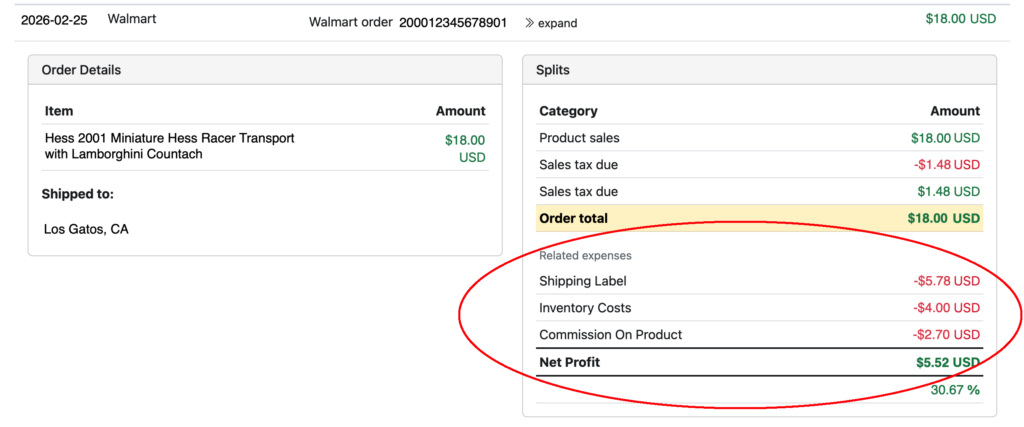
As we have done with both eBay and Amazon, we also recently released the ability for Walmart customers to view the NET profit on each order.
Walmart profit per order
Click the “>>expand” link next to any order in your Walmart account. Under the category split totals that make up that order, you will see a new “related expenses” section that includes other fees and expenses that are tied to that order. This includes the Walmart commission charged for that order. In addition, if you purchase shipping labels through Walmart, we include that too.
Lastly, as mentioned when rolling out our Gross Profit report, if you track your inventory costs at the item level and use unique SKUs for each of your Walmart items, we will match those costs to the correct item. That, plus the other related expenses, helps you see the true NET profit for each order on Walmart.
If you are a Walmart seller who’d like this kind of visibility and automation in your accounting, give Seller Ledger a try. We offer a 30-day free trial, no credit card required.
Ready to automate your eCommerce bookkeeping?
Join thousands of sellers who save hours every month with Seller Ledger.
While we’ve had this functionality around for a while, a recent customer email reminded us that we can always do a better job explaining how things work.
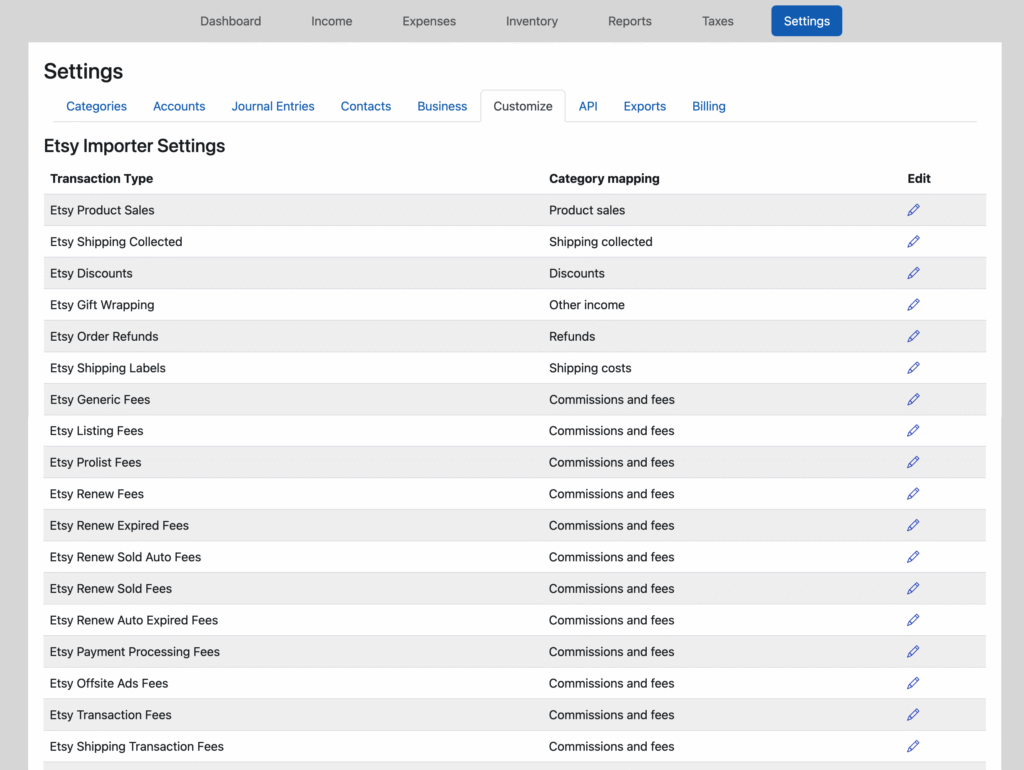
In this case, an Etsy seller wrote in and asked how she can change the category on Etsy ads from the default of “Commissions & fees” to “Advertising”. And she’s not the first customer to ask this.
Fortunately, Seller Ledger makes it quite easy to make that change. Simply go to the Settings tab and click the “Customize” sub-tab. It will bring you to a screen that looks like this:
You’ll notice that there are a lot of different Etsy fees, including:
Generic fees
Listing fees
Prolist fees
Renew fees
Renew expired fees
Renew sold auto fees
Renew sold fees
Renew auto expired fees
Payment processing fees
Offsite ads fees
Transaction fees
Shipping transaction fees
Shipping label insurance fees
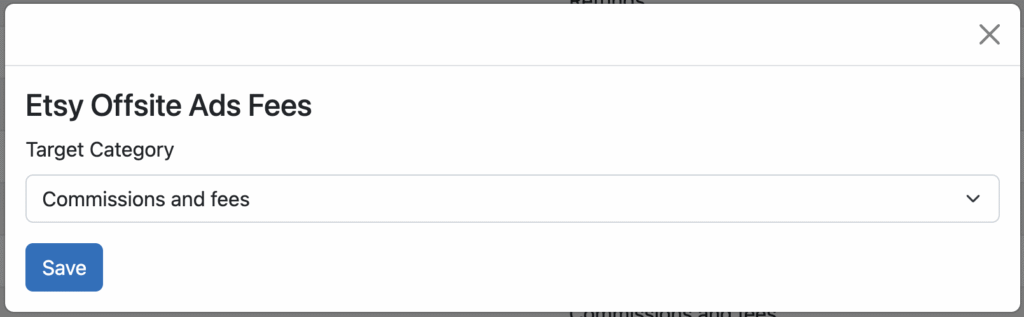
If, as our customer was asking, you wanted to categorize Offsite ad fees as “Advertising”, just click on the edit/pencil icon on the far right to be given this screen:
Then just change the category to “Advertising”, click the “Save” button and you’re all set. Seller Ledger will treat all of these transactions as “Advertising.” This applies not only to all future transactions, but all prior transactions.
What about regular Etsy Ads?
Unfortunately, Etsy does not make the fees for their “on site” ads available through their API. Learn how to handle them here.
Pro tip
You may wish to group some of these Etsy fees into more granular categories. For that, we recommend creating sub-categories, and then mapping these detailed fees to those sub-categories.
Ready to automate your eCommerce bookkeeping?
Join thousands of sellers who save hours every month with Seller Ledger.