
See Your Profit on Each Item Sale

Perhaps the most important financial metric for any eCommerce business, and one of the hardest to calculate at scale, is the net profit you make on every item sold.
Well, Seller Ledger has just rolled out the “holy grail” of eCommerce reports – the ability to see your profit on each item sale.
Do you know which products are actually making you money?
Net profit per item sale is what you’re left with after subtracting all directly-linked expenses from the income you produce by selling an item. It’s the ultimate bottom line.

But figuring out this number is incredibly difficult, particularly if you sell on more than one channel. You need to account for so many potential numbers, which vary widely by channel:
- Sales price
- Any discounts offered
- Shipping charges you may collect from the buyer
- Sales commissions paid to the listing platform
- Potential payment processing fees
- Advertising/promotion/boosting fees
- Potential inventory storage fees
- and many more
And while each platform provides these numbers, they are not always presented together in a single view.
Then, there’s what is often the single biggest determination of your profit – cost of goods sold. Most platforms don’t know this, and a lot of sellers prefer not to share it (for good reason – given concerns about platforms using that data against them.)
The classic solution—spreadsheets!
Sellers have been using spreadsheets to try to figure this out for decades. In fact, there are lots of experienced sellers and influencers across the web offering spreadsheet templates to help sellers track these numbers.
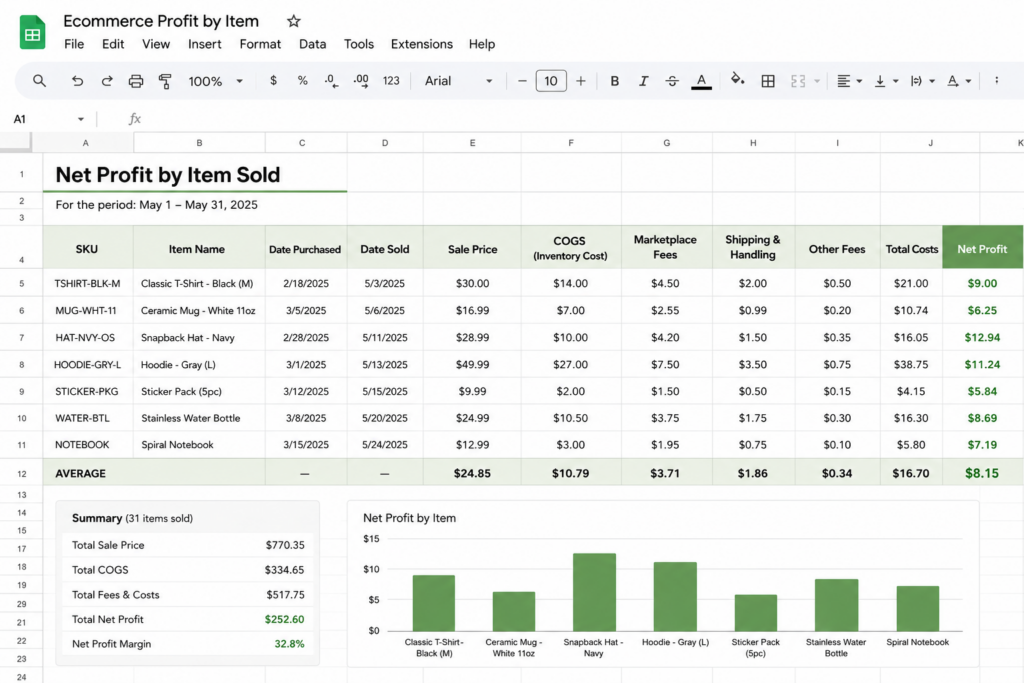
While very good at calculating the numbers you want to see, there is one massive limitation in these spreadsheets: the amount of time to keep them up to date. If only these spreadsheets could update themselves.
Well, that’s basically what Seller Ledger now does. And we allow you to get a head start by uploading your current spreadsheet.
Actual profit, for every product, by channel—all in one place
If you go to the Reports tab, you will see a new sub-tab called “Gross and Net Profit”. This replaces and expands the prior “Gross Profit” report. Click into it to see your full profit picture by product.
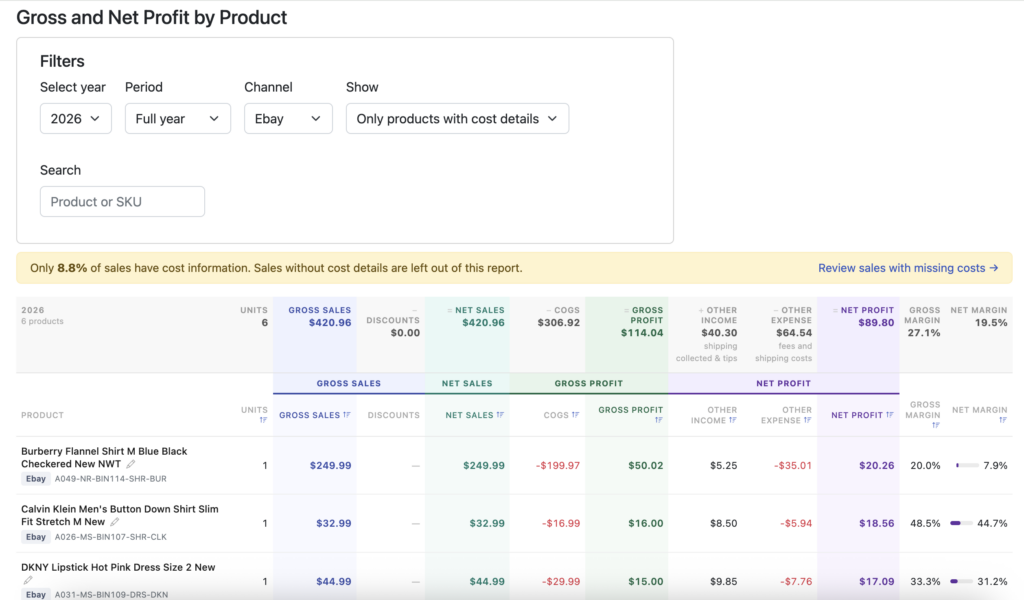
You can view by individual channel or by all of them. If you have sold the same product in multiple channels, you’ll be able to expand that row and see and compare the profit numbers between those channels.
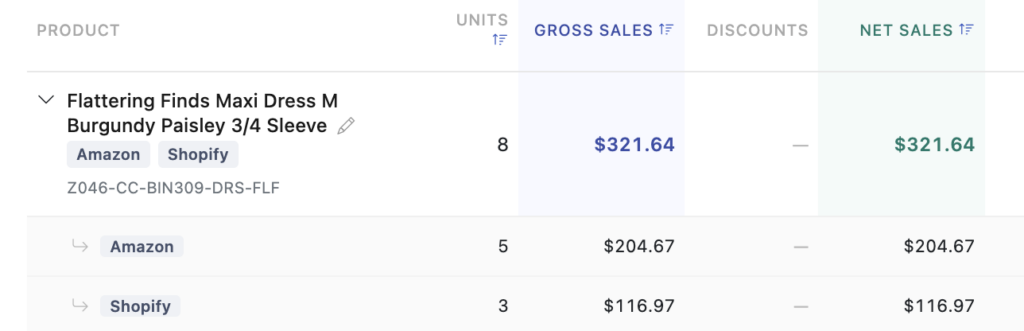
In addition, for those sellers with a LOT of inventory, you can search both by product name and SKU.
What you can do with this information
Knowing how much you make on each item, on each channel, gives you the power to make smarter decisions in your business:
- Source better products: You are now armed with the most accurate information on which items generate the most profit. Find more of them.
- Spend your ad dollars better: Make sure your advertising/promotional spend is paying off for you
- Change your pricing on each channel: You can now factor in all costs from a channel to see if pricing needs to be adjusted.
- Allocate inventory differently: Prioritize the channel/product combinations that make you the most profit.
- Stop losing money: Identify any products on any specific channels and stop selling them.
How to get the most from this report
In order to get set up to have this information at your fingertips, there a few things that will help tremendously when using Seller Ledger.
- Connect your sales channels: first, you need to connect your sales channel/platform to Seller Ledger. You can find our most current list here, and know that it is likely to continue growing.
- Turn on inventory tracking: If you are just writing off “cost of goods sold” as you buy inventory, this level of insight won’t be available to you. But if you’d like to get this report, go to the Inventory tab and change your method to “Inventory Tracking.” We’ve also made it very easy to switch back if you prefer not to continue.
- Load your item costs into Seller Ledger: Make sure you include unique SKUs for each item. As a reminder, you can add them individually, upload a receipt or even a CSV file.
- Include SKU when listing your item: most platforms make this pretty obvious when listing, while others may require an extra step.
Not all platforms support automatic SKU matching
The following connected platforms don’t provide support for SKU fields: Mercari, Depop, Manapool
However, we do provide the ability to match sold items to inventory after-the-fact, so you can still get the insights you need.
Ready to automate your eCommerce bookkeeping?
Join thousands of sellers who save hours every month with Seller Ledger.
No credit card required